Automating Emergency Shutdowns using Webcam Movement Detection
TLDR: While you are not present at your home server, an adversary might bust down your door and seize your home server, defeating your deniability. By using a USB webcam, this can be avoided, by automatically rebooting.
Why Automate Emergency Shutdowns
This tutorial assumes that a sensitive VM is used for hosting a service on your home server.
Context: You run a sensitive .onion service on your home server.
Now you'd imagine that your .onion service is protected by the anonymity Tor provides, but let's say that the web application of the .onion service had a bug letting the attacker leak your home IP address. The server's location is now known to your adversary.
Imagine that this is your home's floor plan:
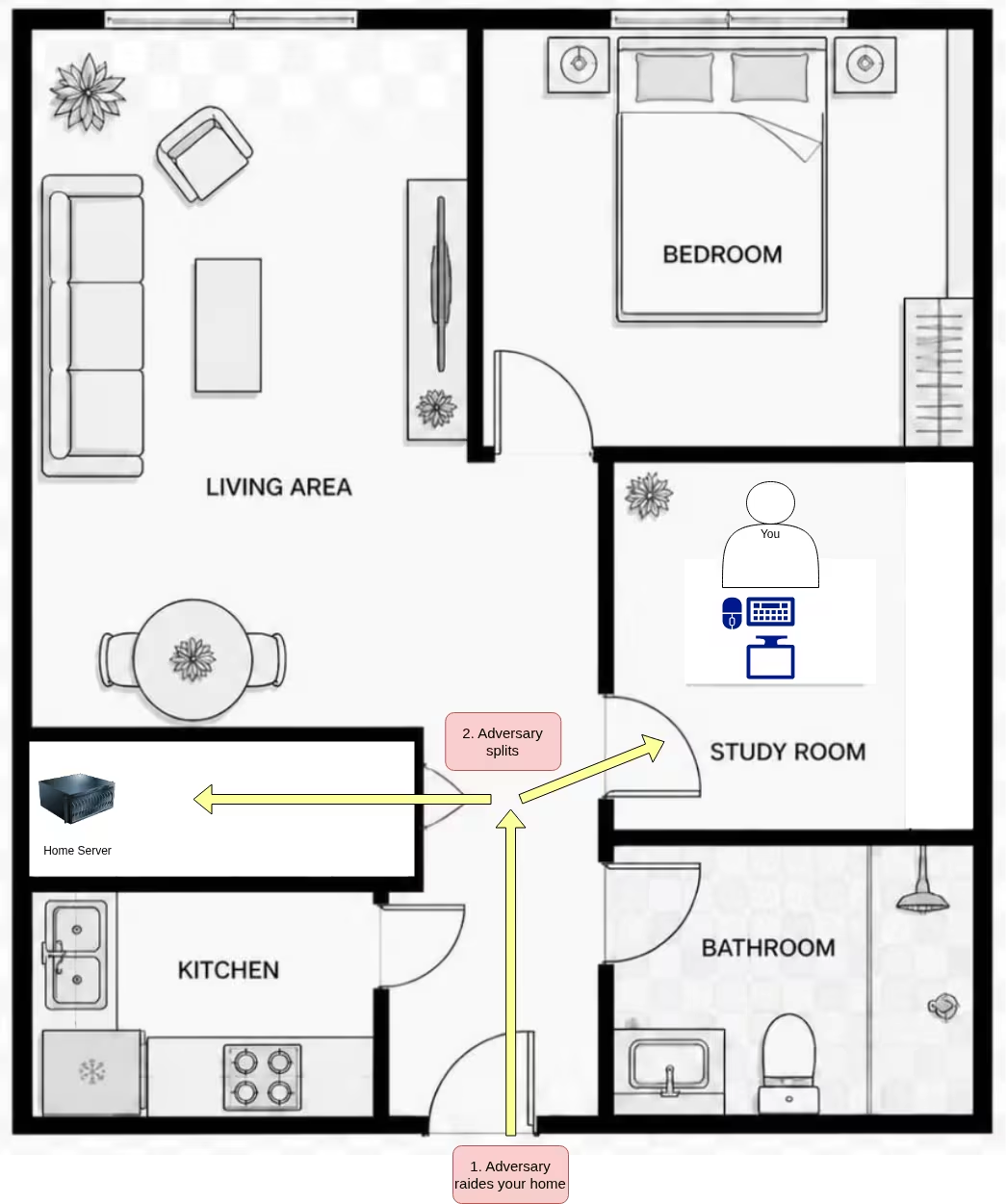
When your home is raided, the adversary rushes to its targets, which most likely are: 1. you 2. your home server
Now on your computer you have set up the emergency shortcut, however on your home server the emergency shutdown script isn't triggered as you are not present, and it's hidden volume is revealed.
Your issue is that the home server doesn't automatically reboot when your home is raided while you are not present in the server room.
When you set up a system to automatically reboot your home server (for this we'll use a USB webcam) the server automatically reboots on-time, protecting the hidden volume, thereby retaining deniability.
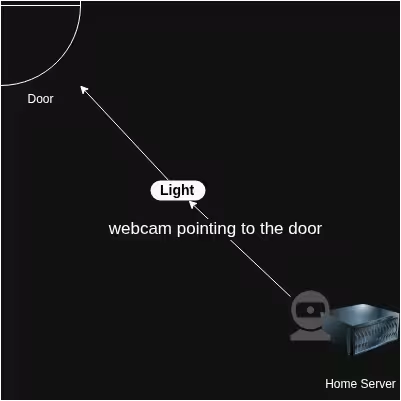
Note: The server room should be rarely used, have no windows to reduce false positives, and a light running 24/7 to make sure the webcam is responsive.
Installing & Configuring Motion
Note: The following steps are all executed on the host within persistent mode, not in a Sensitive VM.
First plug your USB webcam into your home server, pointed at the room's door, like here:
Then login into your home server as root, you can check if the webcam was detected using the following command, should it return True, the webcam was successfully detected:
[root@home-server ~]# python3 -c 'import os;print(os.path.exists("/dev/video0"))'
True
Then we'll install motion, the software that processes the video stream of the camera:
[root@home-server ~]# apt install motion
Installing:
  motion

Installing dependencies:
  ffmpeg         libcdio-cdda2t64      libmicrohttpd12t64
  libavdevice61  libcdio-paranoia2t64

Suggested packages:
  ffmpeg-doc  default-mysql-client  postgresql-client

Summary:
  Upgrading: 0, Installing: 6, Removing: 0, Not Upgrading: 0
  Download size: 4,289 kB
  Space needed: 8,128 kB / 12000.1 GB available

Continue? [Y/n] y

[...]

[root@home-server ~]#
In order to allow motion to execute the reboot script as user without a password, add a rule to the sudoers file:
[root@home-server ~]# echo "motion ALL=(user) NOPASSWD: /home/user/reboot.sh" | tee -a /etc/sudoers
Then we'll configure motion to execute the emergency reboot script once motion is detected by setting the on_event_start config directive:
File: /etc/motion/motion.conf
# Rename this distribution example file to motion.conf
#
# This config file was generated by motion 4.7.0
# Documentation:  /usr/share/doc/motion/motion_guide.html
#
# This file contains only the basic configuration options to get a
# system working.  There are many more options available.  Please
# consult the documentation for the complete list of all options.
#

############################################################
# System control configuration parameters
############################################################

# Start in daemon (background) mode and release terminal.
daemon off

# Start in Setup-Mode, daemon disabled.
setup_mode off

# File to store the process ID.
; pid_file value

# File to write logs messages into.  If not defined stderr and syslog is used.
log_file /var/log/motion/motion.log

# Level of log messages [1..9] (EMG, ALR, CRT, ERR, WRN, NTC, INF, DBG, ALL).
log_level 6

# Target directory for pictures, snapshots and movies
target_dir /var/lib/motion

# Video device (e.g. /dev/video0) to be used for capturing.
video_device /dev/video0

# Parameters to control video device.  See motion_guide.html
; video_params value

# The full URL of the network camera stream.
; netcam_url value

############################################################
# Image Processing configuration parameters
############################################################

# Image width in pixels.
width 640

# Image height in pixels.
height 480

# Maximum number of frames to be captured per second.
framerate 15

# Text to be overlayed in the lower left corner of images
text_left CAMERA1

# Text to be overlayed in the lower right corner of images.
text_right %Y-%m-%d\n%T-%q

############################################################
# Motion detection configuration parameters
############################################################

# Always save pictures and movies even if there was no motion.
emulate_motion off

# Threshold for number of changed pixels that triggers motion.
threshold 1500

# Noise threshold for the motion detection.
; noise_level 32

# Despeckle the image using (E/e)rode or (D/d)ilate or (l)abel.
despeckle_filter EedDl

# Number of images that must contain motion to trigger an event.
minimum_motion_frames 1

# Gap in seconds of no motion detected that triggers the end of an event.
event_gap 3

# The number of pre-captured (buffered) pictures from before motion.
pre_capture 3

# Number of frames to capture after motion is no longer detected.
post_capture 0

############################################################
# Script execution configuration parameters
############################################################

# Command to be executed when an event starts.
on_event_start bash /etc/motion/trigger.sh

# Command to be executed when an event ends.
; on_event_end value

# Command to be executed when a movie file is closed.
; on_movie_end value

############################################################
# Picture output configuration parameters
############################################################

# Output pictures when motion is detected
picture_output off

# File name(without extension) for pictures relative to target directory
picture_filename %Y%m%d%H%M%S-%q

############################################################
# Movie output configuration parameters
############################################################

# Create movies of motion events.
movie_output off

# Maximum length of movie in seconds.
movie_max_time 60

# The encoding quality of the movie. (0=use bitrate. 1=worst quality, 100=best)
movie_quality 45

# Container/Codec to used for the movie. See motion_guide.html
movie_codec mkv

# File name(without extension) for movies relative to target directory
movie_filename %t-%v-%Y%m%d%H%M%S

############################################################
# Webcontrol configuration parameters
############################################################

# Port number used for the webcontrol.
webcontrol_port 8080

# Restrict webcontrol connections to the localhost.
webcontrol_localhost on

# Type of configuration options to allow via the webcontrol.
webcontrol_parms 0

############################################################
# Live stream configuration parameters
############################################################

# The port number for the live stream.
stream_port 8081

# Restrict stream connections to the localhost.
stream_localhost on

##############################################################
# Camera config files - One for each camera.
##############################################################
; camera /usr/etc/motion/camera1.conf
; camera /usr/etc/motion/camera2.conf
; camera /usr/etc/motion/camera3.conf
; camera /usr/etc/motion/camera4.conf

##############################################################
# Directory to read '.conf' files for cameras.
##############################################################
; camera_dir /usr/etc/motion/conf.d
Now the motion configuration file is pointing to /etc/motion/trigger.sh, a non-existent script, so let's create it:
File: /etc/motion/trigger.sh
#!/usr/bin/env bash

TIMESTAMP_FILE="/var/lib/motion/maintenance"

if [ ! -e "$TIMESTAMP_FILE" ]; then
  echo "0" | tee $TIMESTAMP_FILE
fi

if (( $(date +%s) - $(< $TIMESTAMP_FILE) > 300 )); then
  sudo -u user /home/user/reboot.sh
fi
This script points to /home/user/reboot.sh, it's
ran when the server reboots and simply reboots it:
File: /home/user/reboot.sh
#!/usr/bin/env bash

sudo reboot now
Make it executable using chmod:
[root@home-server ~]# sudo -u user chmod 755 /home/user/reboot.sh
This script executes when a motion event starts (see on_event_start in /etc/motion/motion.conf), it first checks if the Unix timestamp in /var/lib/motion/maintenance is more than 5 minutes ago, if so, it executes the emergency reboot script. This condition allows you to perform short physical maintenance like cleaning or physical server maintenance, while also automatically arming the system after 5 minutes.
Then start & enable motion:
[root@home-server ~]# systemctl enable --now motion
Now reboot your server in live mode, then mount your veracrypt drive.
Performing Physical Maintenance
Before entering the room of the home server, login to your home server as root and run the following command to start the 5-minute maintenance window where the home server will not react to any detected movements:
[root@home-server ~]# echo $(date +%s) | sudo -u motion tee /var/lib/motion/maintenance
1785229586
The system automatically rearms after 5 minutes.
Testing The Emergency Shutdown System
Now is time to validate this setup, make sure your home server reboots when you walk into the server room, and periodically verify it's still functioning properly so you can be assured it works when an adversary bust down your door.
 Suggest changes
 plebis
 2026-08-11
 Donate XMR to the author:
42NXaBb36eVhjvcVu6wyW66DBE3WnhFZjFnqbPFZXjMvQ2vxbJ5NR3ZGBg9kjg4Kg2YLijBqcDkrbfsFZQZNE4VKUbjz6Yw